
Context from the file itself.
Filename, metadata, image content and existing tags come together into a small set of candidates.
Signals
Filename
Metadata
Image
Content
Client NorthPortraitFinal
Let your Mac suggest useful tags from the files you are already working with. Review what fits and ignore the rest. Nothing is tagged until you decide.
Suggestions are optional. Every other part of Little Tagger works without them.
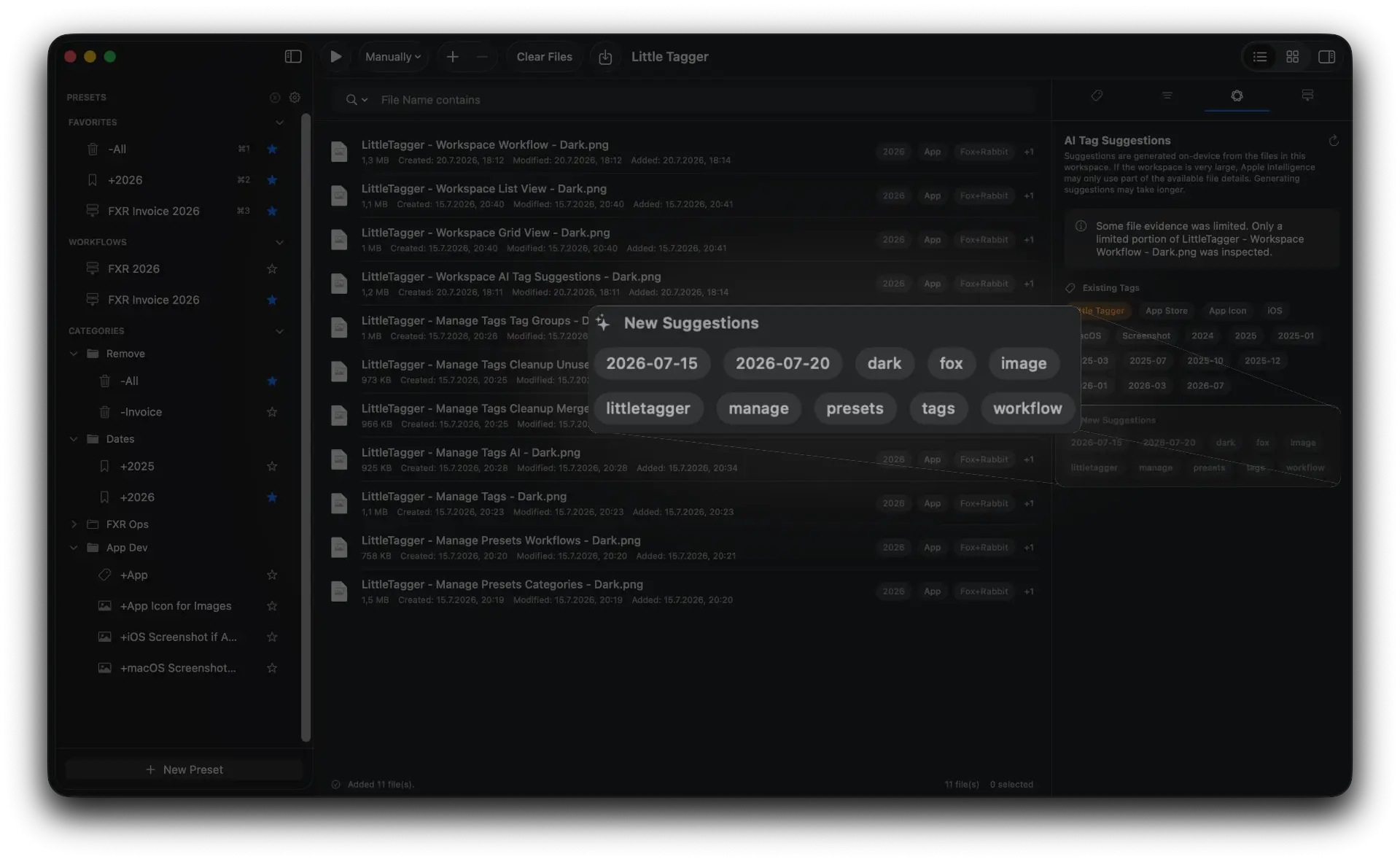
Suggestions come from the files in front of you and from the tag system you have already built.
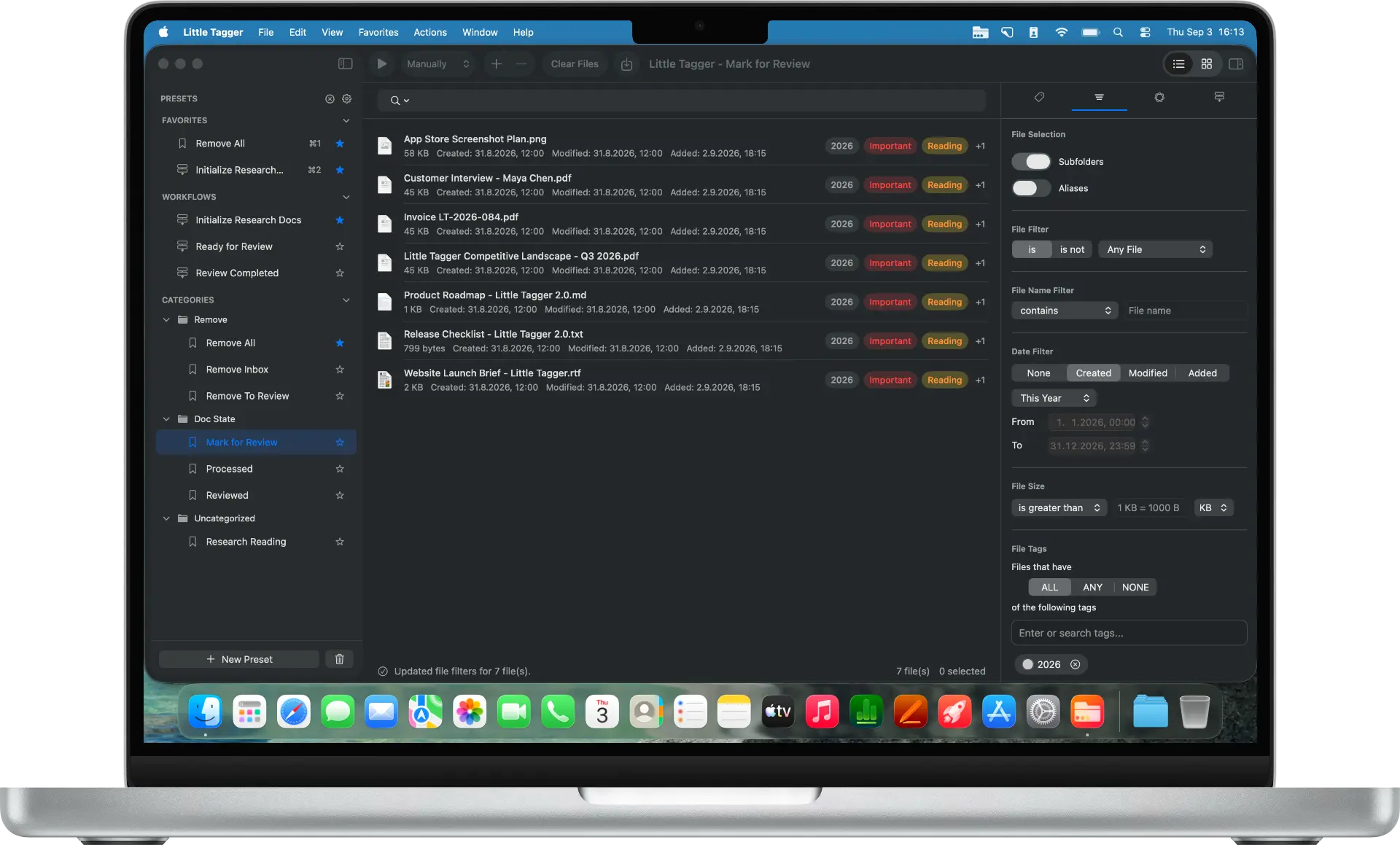
Start with what is already there. Little Tagger uses signals from the files in your workspace to suggest tags that may fit.
Little Tagger uses signals from the files in your workspace to suggest tags that may fit.
Suggestions can consider filenames, metadata, file content, images, existing tags and other useful signals.
Little Tagger checks the tags you already use and suggests existing ones that may match the files in your workspace.
Nothing is tagged automatically. Use the suggestions that make sense and ignore the ones that do not.
Suggestions use Apple Intelligence on supported Macs without sending your files to Little Tagger or third-party AI services.
The suggestion layer sits beside your workspace. It proposes, you choose, and your files never leave the Mac.
Filename, metadata, image content and existing tags come together into a small set of candidates.
Current tags steer suggestions toward the vocabulary of your own system.
Suggestions are proposals. Selecting them is a separate, deliberate step.
Processing happens on your Mac. No uploads, no Little Tagger servers, no third-party AI providers.
Presets, workflows, manual tagging and tag management all work without Apple Intelligence.
A photographer adds a large batch of images after a shoot. Reading every filename to decide on tags is the slow part, not the tagging itself.
Little Tagger analyzes the available context on the Mac and proposes a small set of candidates. What belongs gets applied, the rest is ignored.
Tag files in seconds, automate recurring tagging work and take control of your entire tag system. Private, native, built for Mac.

Free for 7 days · macOS 15+ · Apple Silicon