
Finder tag manager for Mac.
Tag files in seconds, automate recurring tagging work and take control of your entire tag system.
Private, native, built for Mac.
7-day free trial · No account required · macOS 15+ · Intel or Apple silicon
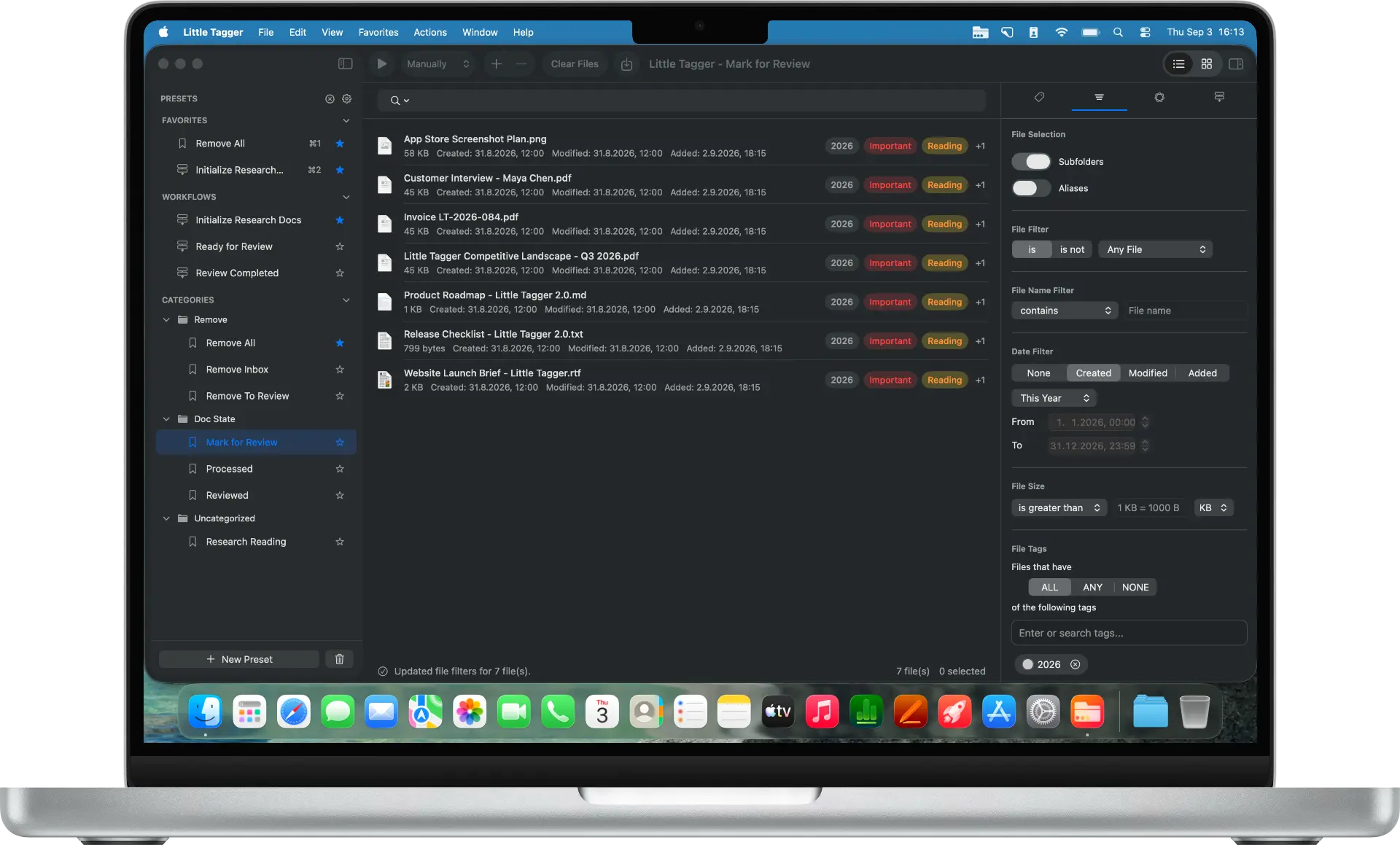
Organize files with tags, without moving them.
Little Tagger is a native Mac app for organizing documents, PDFs, photos and other files with standard Finder tags. Keep files in their existing folders, apply reusable tagging presets, run ordered workflows and clean up a growing tag library. Your tags remain readable in Finder, and you choose which files enter the workspace.
Build a system for research PDFs, client projects or paperless documents.
An inconsistent set of duplicate and similarly named tags is shown becoming an organized system grouped by project, status and client.
Everything you need to master your tags.
Tag once. Reuse forever.
Save recurring add, remove, or replace actions as presets. Apply the same tags consistently to one file, hundreds of files or an entire folder tree.
Explore tagging presets →Tag without the guesswork.
Spend less time wondering which tags to use. Get to useful, consistent tags that fit faster even when you have hundreds of files to work through.
Explore tag suggestions →Turn repeat work into a workflow.
Combine presets into an ordered sequence and let Little Tagger perform each step in the right order. Run workflows manually, immediately or after a short delay.
Explore tagging workflows →Clean up the tag chaos.
Group related tags, see where they are used, identify unused tags and discover similar tags before your library becomes unmanageable.
Manage Finder tags →See how it works.
A short walkthrough of tagging, presets and workflows in Little Tagger.
Save your tagging routine.
A preset is a reusable tagging profile for the work you perform repeatedly. Add several tags, remove old ones or replace one set with another without selecting every tag again.
- Tag research by project, subject, progress and source.
- Tag design exports by client, platform, format and review status.
- Tag invoices by customer, project, year and accounting status.
Reliable tagging, in the right order.
Workflows combine multiple presets into one repeatable process. For files you have already reviewed, remove the old review status, keep their other tags and add the current project and status.
- 1Remove “To Review”.Tags after this step: Article
- 2Add “Research 2026”.Tags after this step: Article, Research 2026
- 3Add “Reviewed”.Tags after this step: Article, Research 2026, Reviewed
- Starting tags in this example: Article, To Review.
- Choose when a workflow runs:ManuallyImmediatelyAfter 3 secondsAfter 10 seconds
Your tagging routines, within reach.
Use Little Tagger in Apple Shortcuts, or find saved presets and workflows with Spotlight. Bring familiar tagging setups into the way you already work.
Make tagging part of a shortcut.
Apply tags, use a saved preset, or run a workflow on files you supply. Combine Little Tagger’s actions with other steps in Apple Shortcuts to reuse the routines you repeat.
Use Little Tagger with Shortcuts →Find a saved setup with Spotlight.
Search for saved Little Tagger presets and workflows in Spotlight, then open the one you need.
Requires macOS 26 or later.
Find presets and workflows with Spotlight →Use Raycast? Copy a preset or workflow link and keep it in a Quicklink. Set up Raycast Quicklinks →
From one file to an entire folder tree.
Add files with the global ⌘ ⇧ E shortcut, drag or paste them into the workspace or use the Add Files button. Include subfolders when you need to process a complete project structure and enable aliases only when they should be included.
Send files to Little Tagger without interrupting your work.
Add the root folder once and process its complete folder structure.
Little Tagger changes only Finder tags, not filenames, locations or file contents.
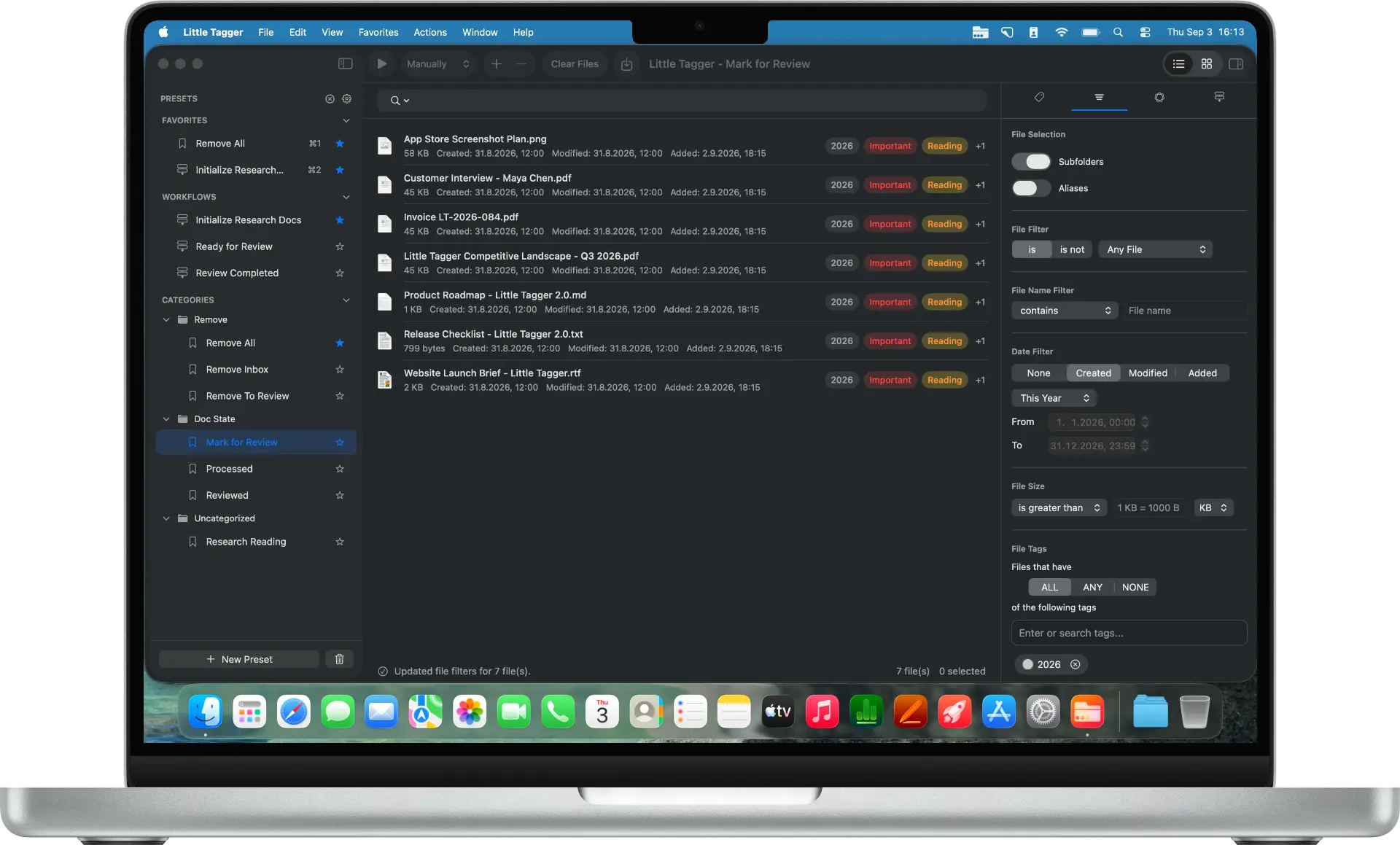
Less thinking. Better tagging.
Get useful tag suggestions from filenames, metadata, supported file content, and existing tags. On supported macOS 27 systems, image understanding can also help Little Tagger suggest tags from what an image shows. Nothing is tagged until you decide.
On your Mac. Your files stay yours.
Tag suggestions are generated on your Mac. Files and their contents are not uploaded to Little Tagger servers or third-party AI providers for this processing.
- PrivateNo file uploads for suggestions.
- PrivateNo cloud processing.
- PrivateNo third-party AI.
- PrivateAI features are optional.
Apple Intelligence suggestions require macOS 26 or later and an available on-device model on an eligible Mac. Image understanding additionally requires macOS 27 and a model that supports it. Core tagging works without Apple Intelligence.
Learn about tag suggestions →Your tag library, finally under control.
Finder hides tag management inside its settings and offers little help once your tag list begins to grow. Little Tagger gives you a dedicated place to inspect, organize, and maintain the tags used across the locations you approve.
Understand how often a tag is used, which presets contain it, and where tagged files are located.
Organize related tags into groups without changing how the underlying Finder tags work.
Identify unused tags and names that are no longer assigned to scanned files.
Discover tags that differ only by spelling, punctuation, separators or similar wording. Review suggested canonical tags before consolidating similar names within the locations Little Tagger can access.
Tags remain standard macOS tags and continue to work in Finder and other compatible apps. Tag groups are an optional organizational layer inside Little Tagger.
Built for the way you work.
Whether you're researching, creating or simply keeping a busy Mac organized, Little Tagger gives you a tagging system that fits your workflow.
Keep every source connected to your work
Organize papers, notes, datasets, transcripts, references and supporting material by project, subject, progress and source. Build a consistent research system without tagging every file from scratch.
Little Tagger for Research →Organize hundreds of files with consistent Finder tags
Keep photos, design files and exports organized by client, project, format, platform, review status or delivery stage. Spend less time sorting files and more time creating.
Little Tagger for Creatives →Make Finder tags work the way you always wanted
Bring consistency to project files, documents, downloads, invoices, archives and everything else you keep on your Mac. Save the tagging routines you repeat and keep your tag library under control as it grows.
Little Tagger for your Mac →Your files stay yours.
The Little Tagger Mac app works locally on your Mac, accesses only the locations you approve, and keeps your organization in standard Finder tags. The app does not use tracking, advertising or analytics.
Only where you allow.
Little Tagger is sandboxed and can access only the folders and volumes you explicitly approve. Add or revoke access whenever you want.
Your files stay on your Mac for tagging and suggestions.
Your files are not uploaded for tagging or suggestion processing. Apple Intelligence suggestions are generated on-device, with no cloud processing or third-party AI services involved.
Native tags. No lock-in.
Little Tagger works with standard Finder tags. Your tags remain available in Finder and other compatible Mac apps even if you stop using Little Tagger.
In the Little Tagger Mac app
- No account
- No cloud service required for tagging
- No file uploads for tagging
- No analytics
- No tracking
- No advertising
See the privacy policy for details.
Try every feature free for 7 days.
Explore presets, workflows, tag management, and Apple Intelligence suggestions with full access during your trial on the yearly plan. Current pricing is shown in the Mac App Store.
No account required. Manage or cancel anytime through your Apple subscription settings.

FAQ
What is Little Tagger?
Little Tagger is a native Mac app for organizing files with Finder tags while keeping them in their existing folders. It adds reusable tagging presets, ordered workflows, tag groups and tools to clean up duplicate or unused tags. Core features require macOS 15 or later and Intel or Apple silicon.
Can I organize research PDFs without importing them into a database?
Yes. Little Tagger applies native Finder tags to PDFs, notes, datasets and other files where they already live. Use project, topic and review-status tags across folders, then find files through Finder. Little Tagger complements a reference manager such as Zotero; it does not provide a citation database or replace your reading and note-taking apps.
What is the difference between a preset and a workflow?
A preset performs one reusable tagging action: adding, removing, or replacing one or more tags. A workflow runs several presets in a defined order.
Does Little Tagger watch my folders?
No. You supply files through the workspace, Finder integration or Apple Shortcuts. Saved presets and workflows can then run manually, immediately, after 3 seconds or after 10 seconds. Little Tagger does not monitor folders in the background or run a conditional rule engine based on filenames, dates or file types. For tagging rules that watch selected folders, explore Taggy Tagger, also by Fox+Rabbit.
Does Little Tagger move or rename files?
The Little Tagger Mac app changes Finder tags only; it does not move or rename files or edit their contents. The separate free file renamer on this website creates a ZIP of renamed copies in your browser, leaving your originals unchanged.
Are my files uploaded?
No. Files remain on your Mac. Apple Intelligence suggestions are generated on-device and no file information is transmitted to Little Tagger servers or third-party AI providers.
Is Apple Intelligence required?
No. Presets, workflows, manual tagging and tag management work without Apple Intelligence. Only tag and merge suggestions require it.
Why does Little Tagger need access to folders and volumes?
macOS sandboxing prevents apps from accessing arbitrary files. You grant Little Tagger access only to the locations it should scan or modify. You can revoke access at any time.
Do my tags still work without Little Tagger?
Yes. Little Tagger works directly with standard Finder tags. Tag groups are an additional organizational feature inside the app, but the tags themselves remain native to macOS.
Master your tags.
Tag files in seconds, automate recurring tagging work and take control of your entire tag system. Private, native, built for Mac.
Free for 7 days · No account required · macOS 15+ · Intel or Apple silicon